Quick Start - five easy steps to recovering your pictures!
AppleXsoft Mac Photo Recovery is easy-to-use Digital Media Recovery software. This tutorial is intended to quickly familiarize you with AppleXsoft Mac Photo Recovery. You can get started using this software in 5 steps.
First, Download
AppleXsoft Mac Photo Recovery for Digital Media. The file you are downloading is named "PhotoRecoveryforMac.dmg". and then install it on your computer.
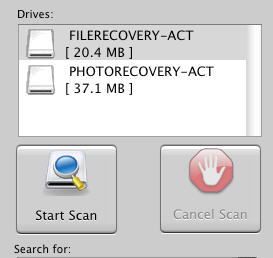
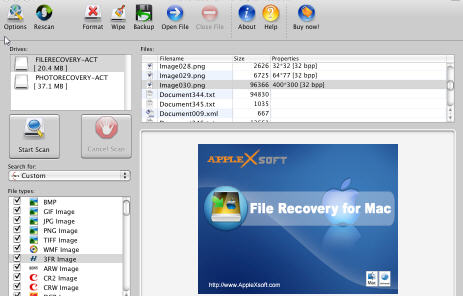
1. Start AppleXsoft Photo Recovery for Mac and choose your removable media from the list by drive letter. Select the physical device if no drive letter has been assigned to your media.
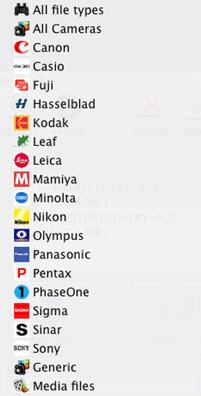
2. Choose the type of image file you are looking for, or select the model camera you are using.
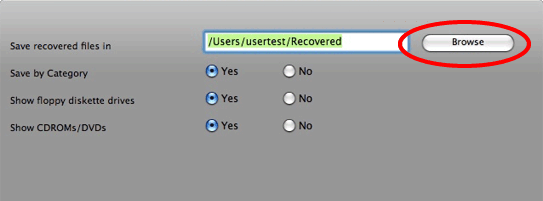
3. Click the Options button and select the destination for your saved images.
Do not select your media card
as the destination, as this will destroy the data on the card and it will not be recoverable!
Choose a separate drive and folder. The default is the user's home folder.
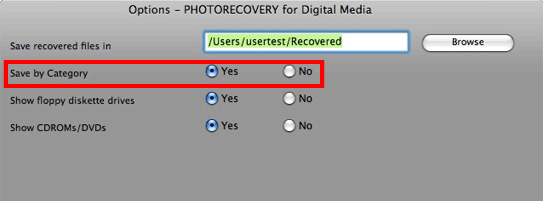
You can also choose to save the files by category in the Options screen. This will save the files in subfolder categories in your destination folder.
4. Click the "Start Scan" button, and allow the scan to run all the way through on your media.
Your files will automatically be saved in the destination folder.
As the scan progresses, you will see image file names show in the list. You can click on any image file name
to show a preview of the picture.
5. When the scan is finished, you will get a scan completed message.
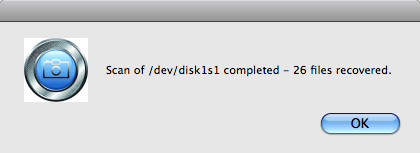
That is all there is to recovering those pictures you thought were gone forever!
Important:
- Never choose the volume you are scanning as the destination drive! This will erase all recoverable data!
- You should not use the system with the deleted files to surf the Interne, check mail or create documents.
- Never install software to a disk containing deleted files you wish to recover.
- The more activity, the less of a chance for a successful recovery.