The Universal Data Recovery Software for Windows System Available Now!
AppleXsoft International: Deutsch Français Россию 繁體中文 简体中文 日本語  
  You are here: AppleXsoft.com > Windows File Recovery > Getting Started
 
Product Information

Software Overview
Download Free Trial
Buy Now
Windows Product Comparison
View Screen Shots
Getting Started
FAQ

System Requirements:

Windows Compatible

Windows 7/8/2003/XP/Vista

512 MB RAM
Second hard disk is recommended for recovery.

AppleXsoft Products List

Mac Software

File Recovery for Mac
Photo Recovery for Mac
SD Card Recovery for Mac
Digital Media Kit for Mac


Windows Software

Data Recovery Professional
Windows File Recovery
Photo Recovery for Windows
File Eraser
Digital Media Kit for Windows
Hard Drive Copy

Our Awards


More Awards
Please follow the quick and easy steps below to begin undelete deleted files

Bookmark and Share

Before getting started your success in recovering files depends a great deal on how the disk is handled and the amount of information written to the disk after the deletion occurred:


Note: Do NOT continue work on a hard drive containing lost files.
  • Never install software to a system containing deleted files you wish to recover.
  • The more activity the less of a chance of recovery.
  • You should not use the system with the deleted files to create documents and folder, surf the Internet, or check mail so on.
  • Do NOT reboot or shut down the system.
  • DO NOT defragment your hard drive or execute SCANDISK in a deleted recovery situation. Doing so will likely remove all remnants of the file you are trying to recover.
  • DO NOT run any other partition repair utility.

NOTE: For using Windows File Recovery under under Windows® 7/2000/XP/VISTA your user account must have administrator privilege.

Step-by-step file recovery guide, In 4 steps you undelete deleted files:


Step 1: Run AppleXsoft File Recovery.
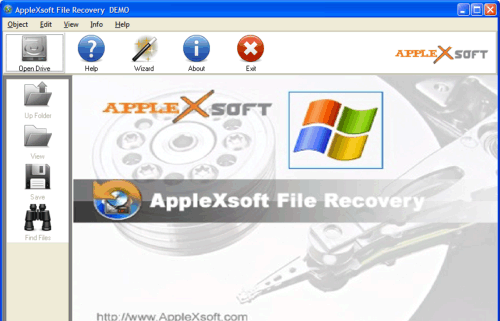
AppleXsoft File Recovery Screenshot


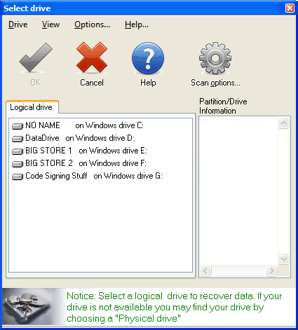
Step 2: Choose your drive

Choose drive


Step 3: Select your deleted files/directories
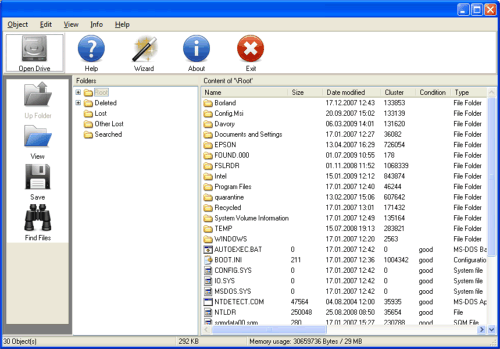
Select deleted files/directories


Step 4: Simply save them to another hard disk!
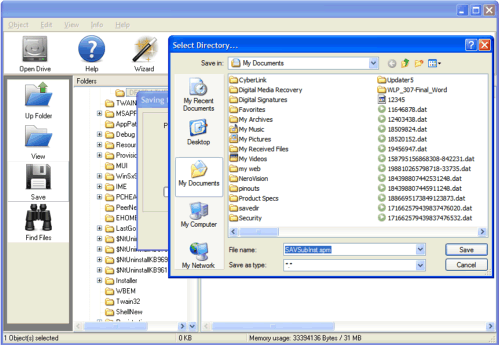
Save File


Related Questions
How to clone partitions or entire hard disk to new disk?
How to recover formatted hard disk?
How to find the deleted Yahoo Archive Conversation with Mac File Recovery?
Why Lose Data and How do You Perform Data Recovery?
How to Recover lost folders from Windows?
Recover Lost Music and Video from iPod with AppleXsoft iPod Recovery software.

About Us | Press Releases | Privacy Policy | Sitemap | Glossary | Copyright © AppleXsoft.com 2013. All Rights Reserved
All trademarks acknowledged. Mac, Mac OS, Mac OS X and Apple are registered trademarks of Apple Inc.